
6. Inviting Users & Assigning Roles
Once a Vessel is linked to an Entity, you can invite teammates and other users and assign their roles.
Select the Vessel you want to add users to, with the roles of Admin, Owner, Approver, or Spender.
- From the left-side menu, go to ‘Users’
- Click on the blue button ‘+ Invite User’
- Add the user's email address
- Add their role
- Click on ‘Send Invite’
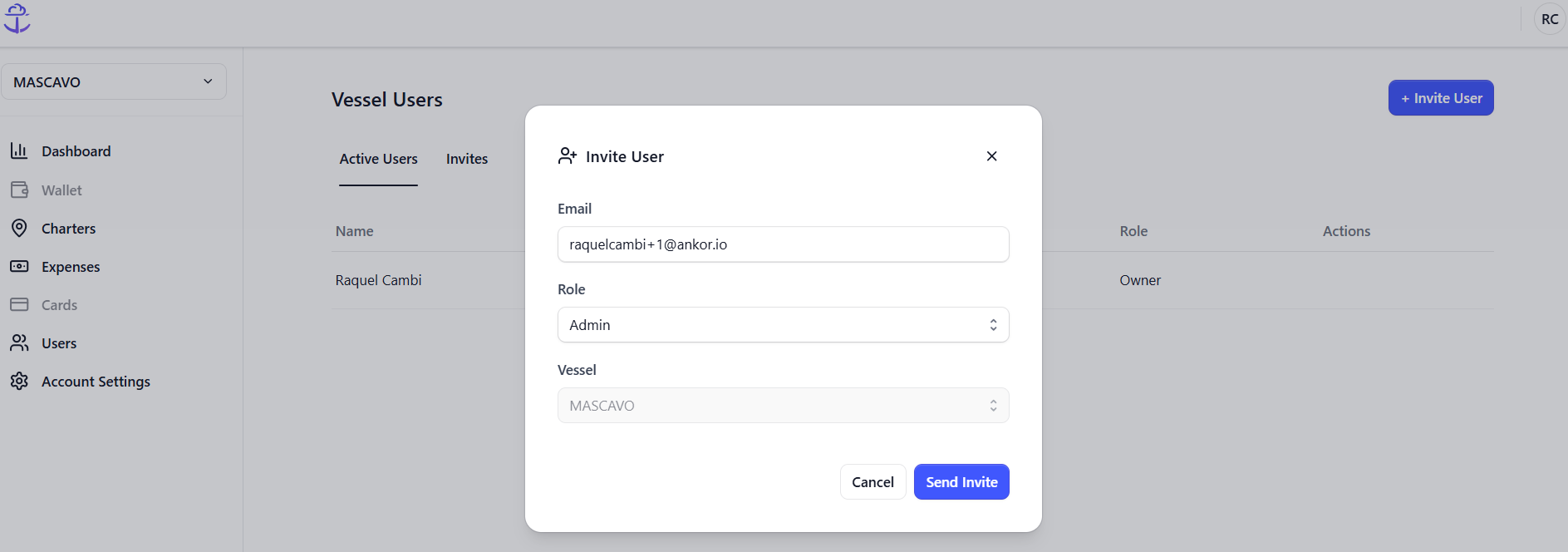
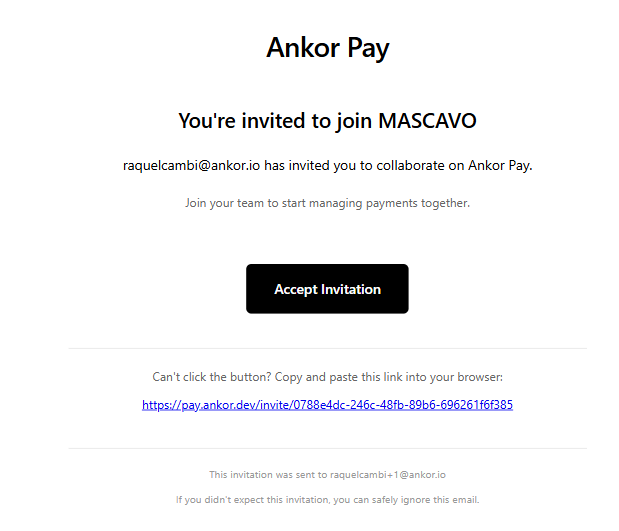
The user will receive an invitation email. They must accept the invitation through that email to activate their access to AnkorPay.
The user will receive an invitation email from Ankor with the following content:
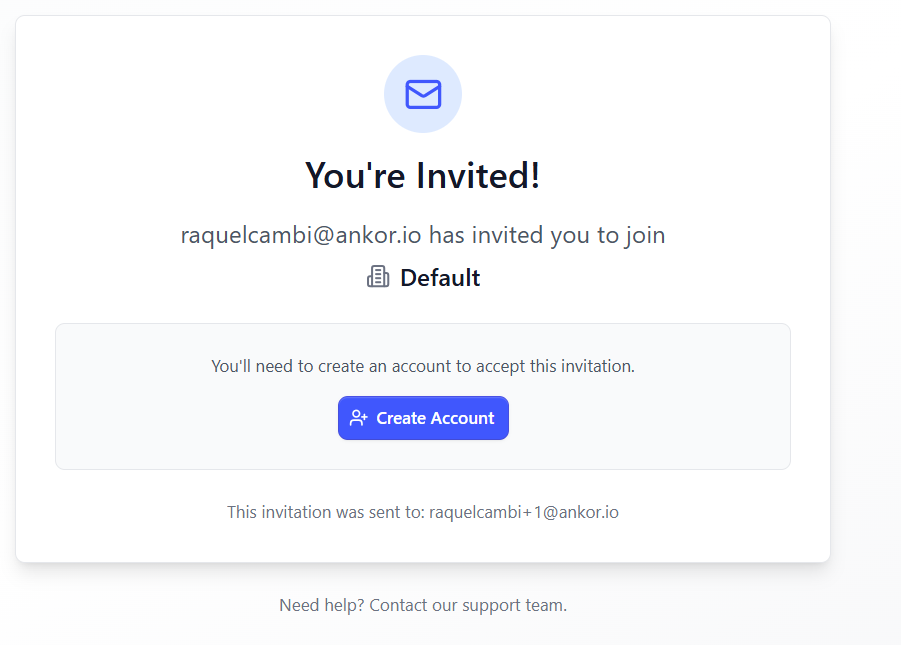
See our Roles & Permissions article to understand more.
Revoking a user's invitation
If you have invited a user to AnkorPay, but would like to cancel that invitation for any reason, you can easily do so from the Users section.
1. Just click on Invites, the second tab on the top:
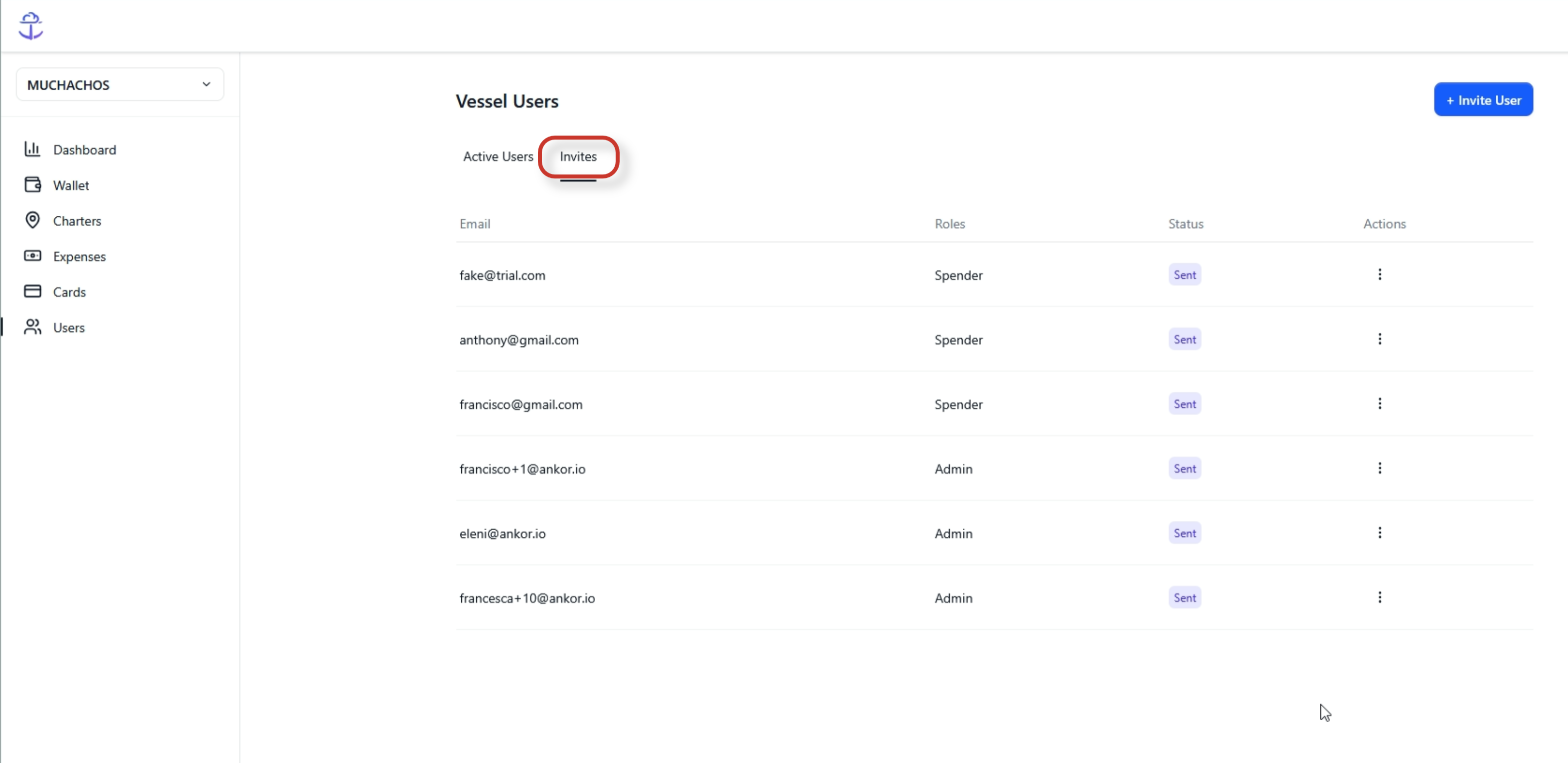
2. Select the three dots next to the user you want to revoke the invitation for:
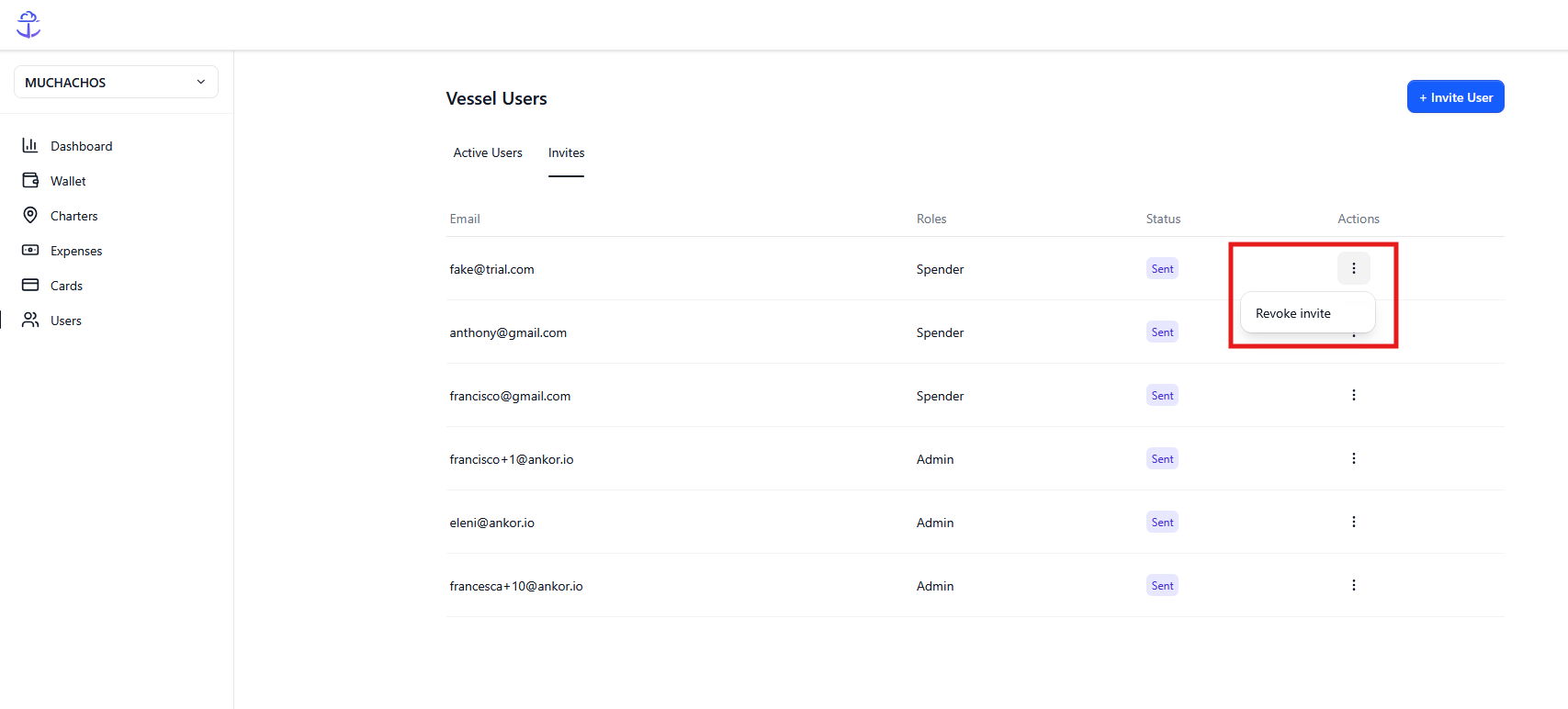
3. Click on the Revoke Invite button. You will be shown a message asking you to confirm this action:
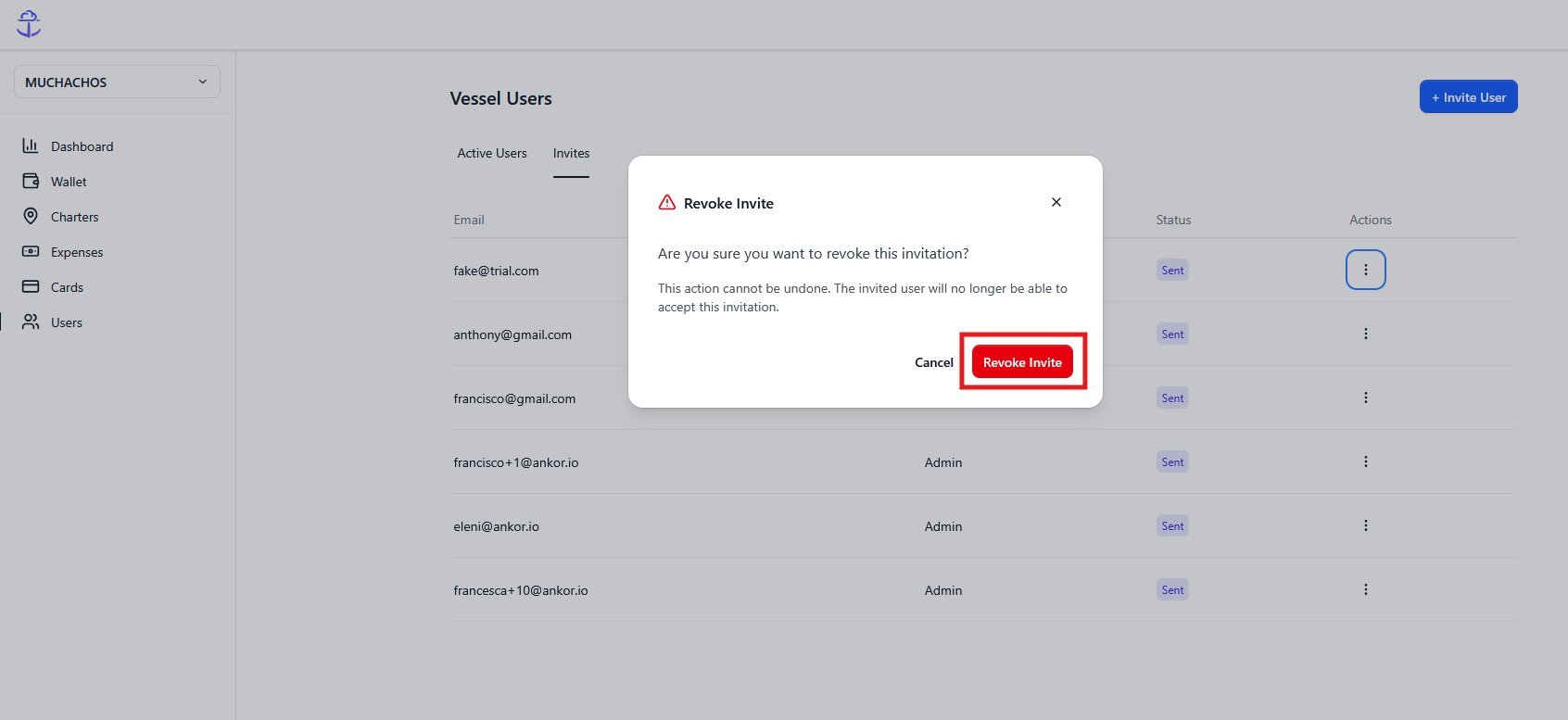
To add this user to your Vessel again in the future, you’ll need to send a new invitation following the steps at the beginning of this article.
Questions? Do not hesitate to reach out to support@ankor.io