
9. Charter Expenses
See how to create expenses manually and how to see & approve real time expenses
- Automatic and real-time expenses:
These are expenses made using the AnkorPay Card. When a spender uses their AnkorPay Card, the transaction is automatically logged under the relevant charter, and they can also upload a photo of the receipt. If cards have already been issued under the vessel, all transactions will appear automatically. - Manual expenses:
If, for any reason, a spender cannot use an AnkorPay Card (for example, cards have not yet been issued or the payment was made another way), the expense can be logged manually in the AnkorPay Platform. In this case, all expense details must be entered manually.
How to see the Charter Expenses
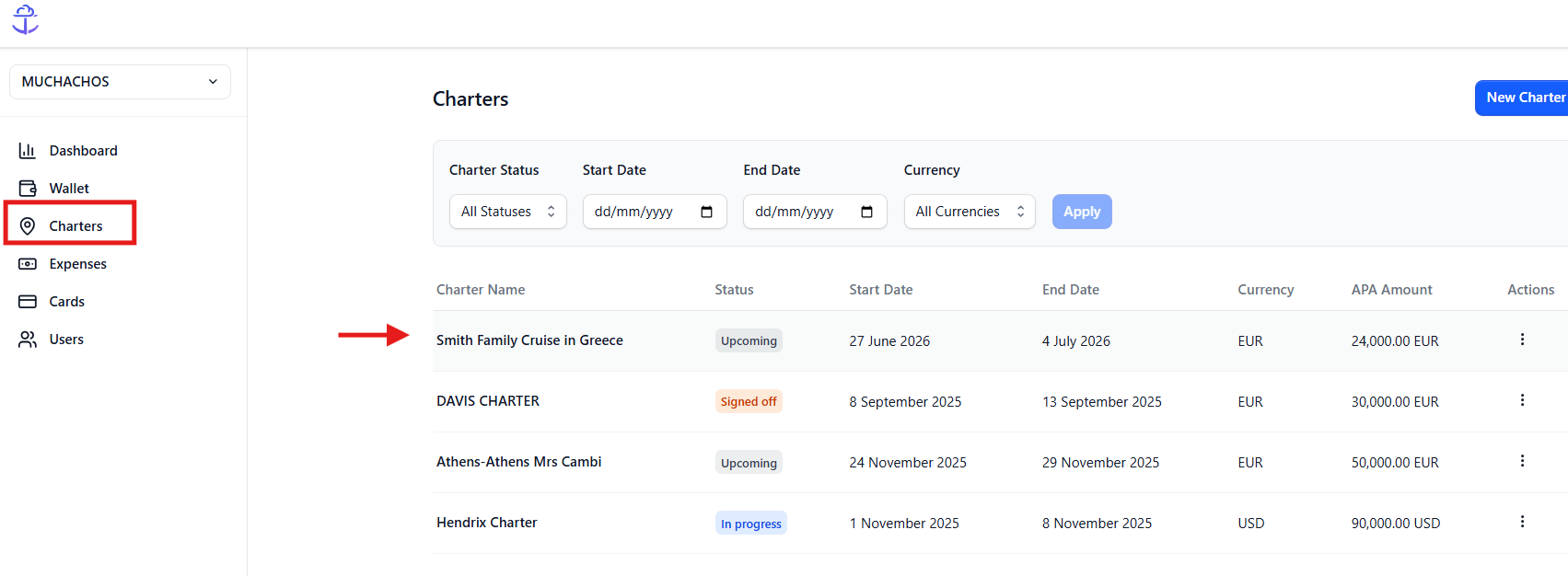
- Choose the correspondent Vessel form the list> Click on 'Charters'
- From the Charters List, select the correspondent Charter Name
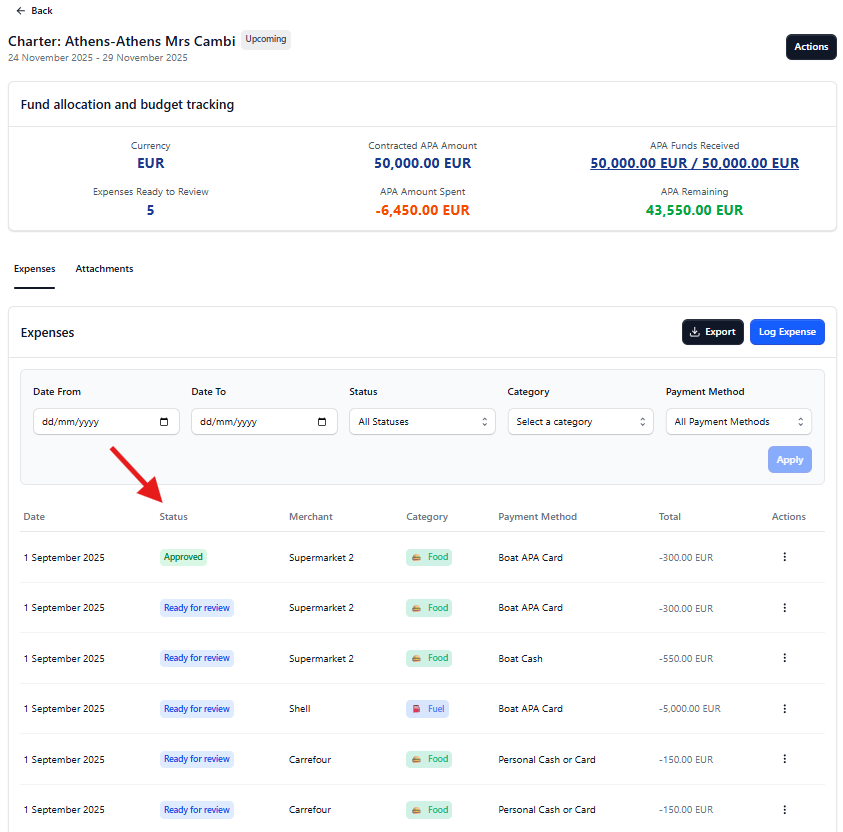
- Once you are in the correct Charter, you will a summary of the current Charter Expenses
How to Review a Charter Expense
You can either approve or reject an expense. In the Status column, you will see one of the following:
- Ready for Review: An action is required (approve or reject).
- Approved: The expense has been approved by a user with the appropriate permissions (Owner, Admin, or Approver).
- Rejected: The expense has been rejected by a user with the appropriate permissions.
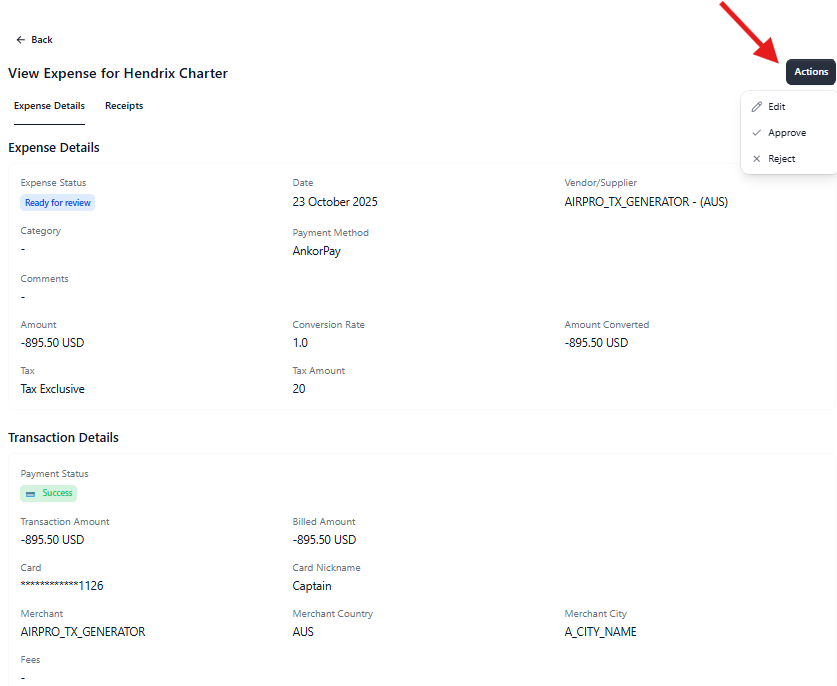
To take an action on an expense:
- Click on the expense you want to review.
- Go to the Actions button and select the desired action (Approve or Reject).
- The updated status will appear in the Status column.
Need Support? Please do not hesitate to recah out to our team at support@ankor.io