
How to update your phone number for SMS verification (SCA Management)
If your vessel entity is located in Europe, some financial actions require Strong Customer Authentication (SCA). As part of this, AnkorPay sends a verification code by SMS to your phone. If your phone number isn’t up to date, you won’t receive the code and won’t be able to complete these actions.
This applies to all user roles, including Spenders, Approvers, Vessel Admins and Organisation Owners.
⚠️ Important: You must update your phone number yourself. For security reasons, an admin cannot change it on your behalf.
Before you start
Make sure you have:
- Your 6-digit AnkorPay passcode
- Access to your current phone number, or your recovery codes (the file you downloaded when you first set up your AnkorPay account)
Steps to update your phone number
1. Log in to the AnkorPay web platform
Go to https://pay.ankor.io/ and sign in.
2. Open SCA Management
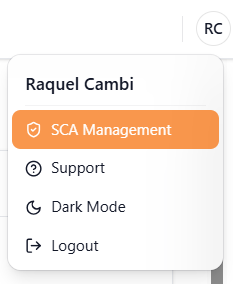
Click your avatar/initials in the top-right corner and select SCA Management. This is where you manage your two-factor authentication settings, including your mobile phone number and passcode.
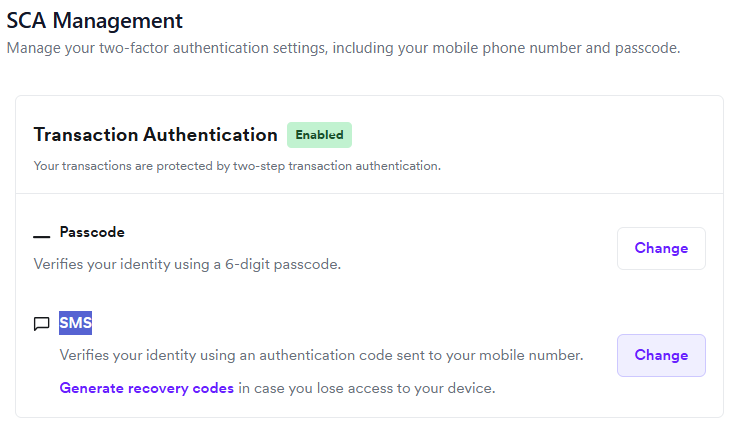
3. Change your SMS number
Go to the SMS section and click Change.
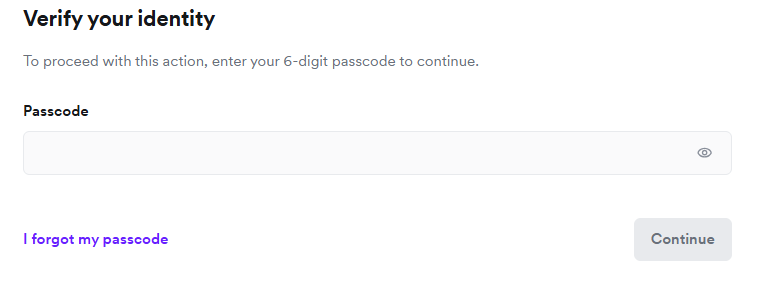
4. Enter your passcode
Enter your 6-digit passcode.
Forgot your passcode? Click Forgot my passcode and we’ll email you a code so you can reset it.
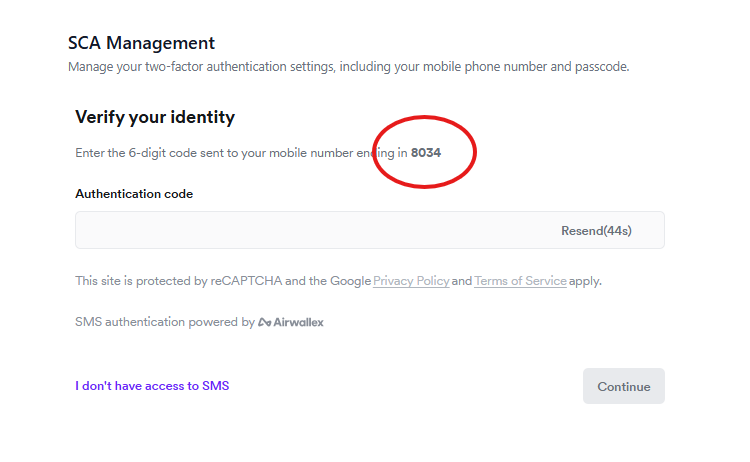
5. Verify your identity
We’ll send a verification code by SMS to your current phone number. Enter it to continue.
No longer have access to your old number? Click I don’t have access to SMS. You’ll be asked to enter one of your recovery codes instead.
6. Add your new phone number
Enter your new mobile number, including the country code.
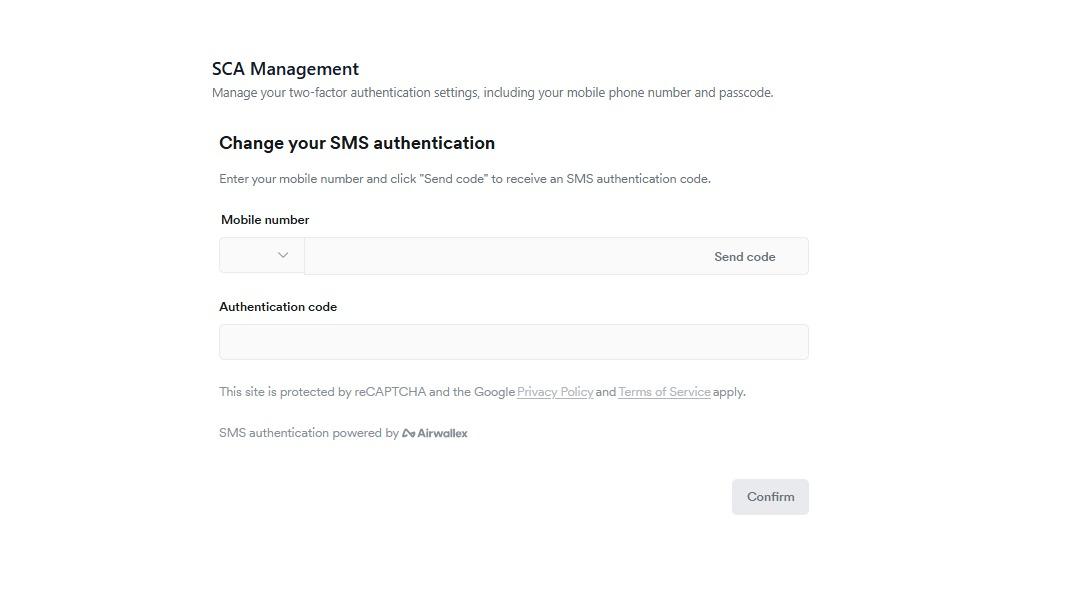
7. Confirm your new number
That’s it! Future SMS verification codes will be sent to your new number.
Need help?
If you don’t have access to your old number or your recovery codes, contact our support team at support@ankor.io.