
8. Cards & Cardholders
See the video:
Prerequisites
- A card can only be issued after the user has been added to the vessel and has accepted the initial email invitation.
- Users must exist under the vessel before they can become cardholders.
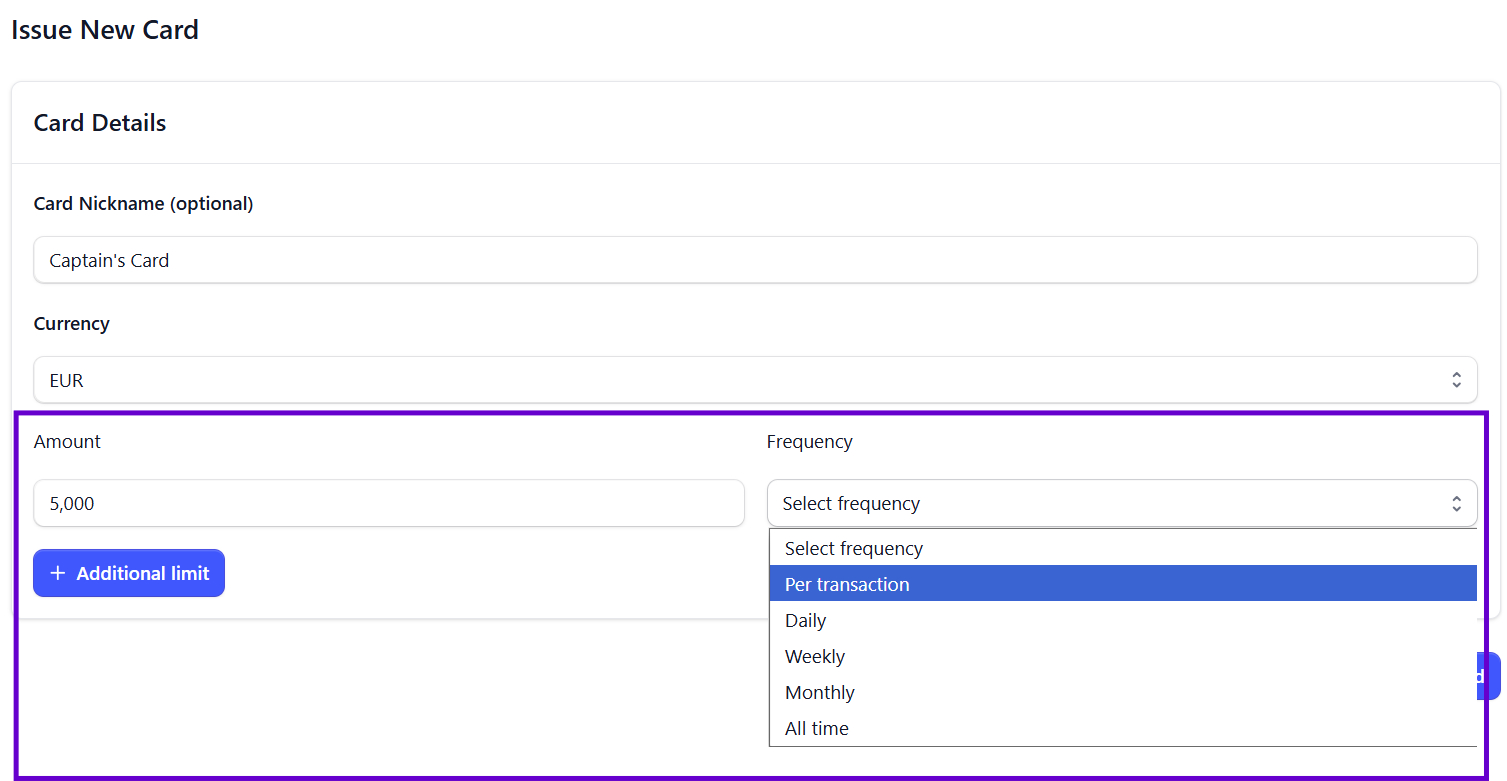
- Each card must be given a limit (per transaction, daily, weekly, monthly, all time)
To see how to add an User to a vessel, click here.

Checking if a User Already Exists
- Go to Vessel > Users from the left-side menu
- Check the list of users
- If the user is not listed, click + Invite User
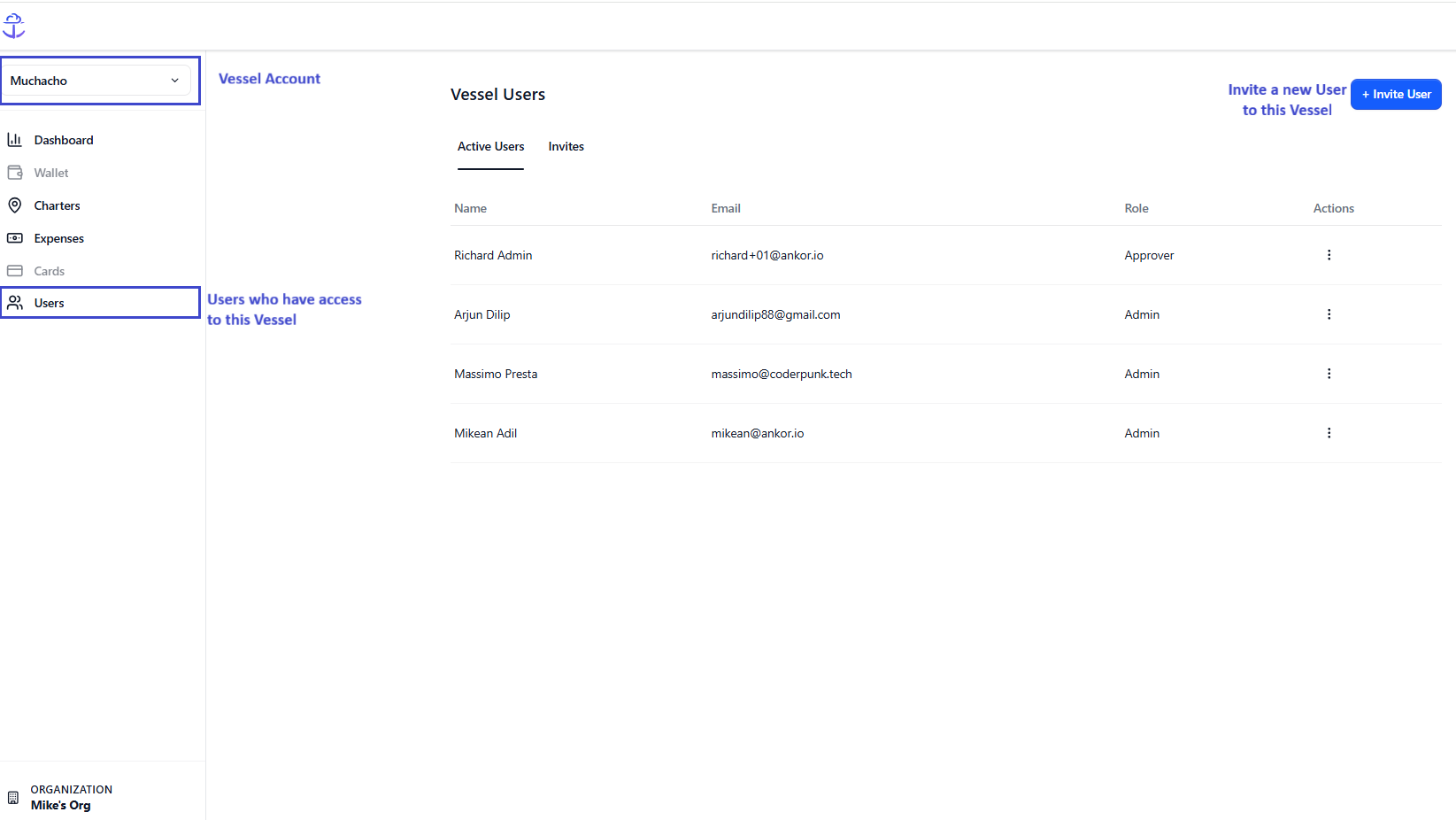
Issuing a Card to a Vessel User
Ensure the user already belongs to the vessel
- Go to Cards in the left-side menu
- Click '+ Issue Card'
- Select either:
- Existing Cardholder
- New Cardholder
Note: Cardholders represent a human who uses a card. This could be:
- An owner
- Employee (admin/approver)
- Crew member or captain
- Temporary card user
Every card must be associated with at least one cardholder.
Creating a New Cardholder
- Go to Cards > Cardholders
- Click '+ Add New Cardholder'
- Select which vessel user the cardholder will belong to
- Fill in the cardholder’s personal information
Card Creation Workflow
- Select the User associated with the vessel
- Name the card (optional, e.g., “Captain’s Card”)
- Select between Virtual or Physical card.
- Set Currency, Limit Amount, and Frequency (Per Transaction, Daily, Weekly, Monthly, or All Time)
- Click Finish
Admin and Owner Capabilities:
- Edit
- Freeze / Unfreeze
- Cancel
Difference between Virtual and Physical cards
When selecting card type, you will notice there are two different types: Virtual and Virtual & Physical
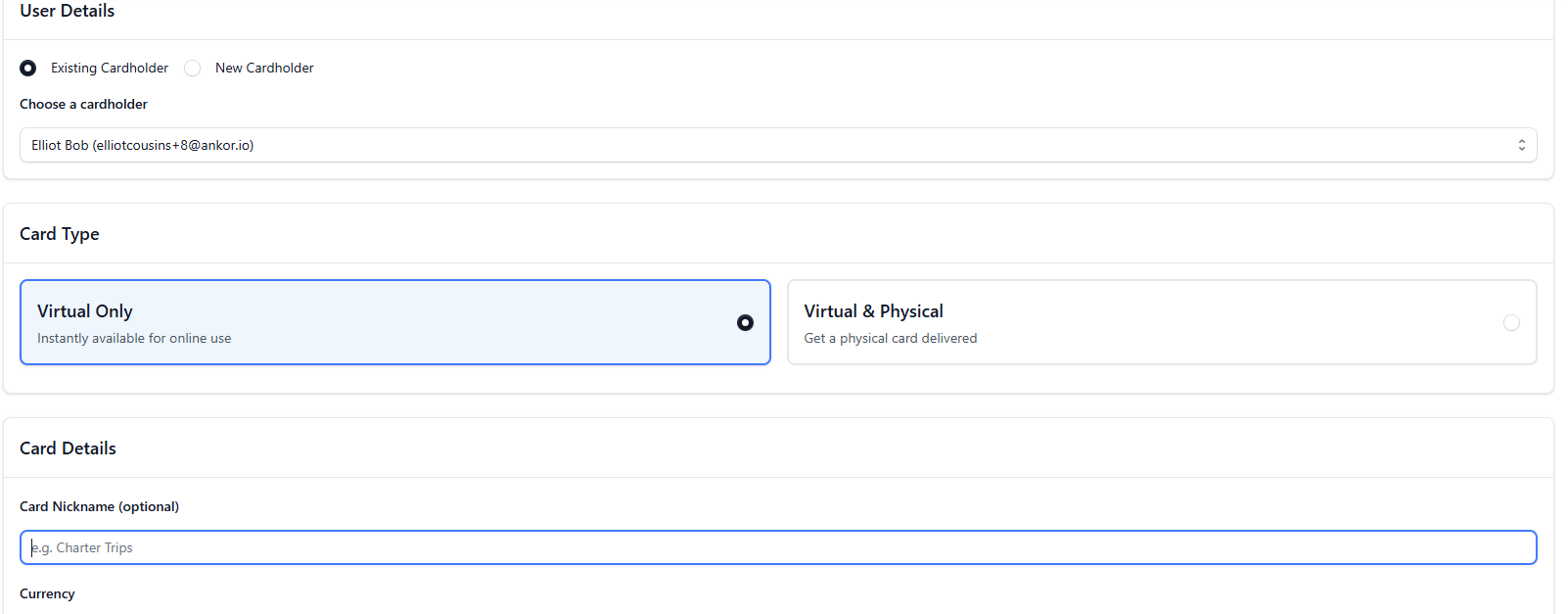
These are their main differences:
- Virtual cards are issued immediately and can only be used from a smartphone, as any other virtual card from a bank.
- Virtual & Physical will issue a physical card that will be delivered to the cardholder's address in about 12 working days, and needs to be activated from your AnkorPay account (more about activation here). This card can also be added to a phone wallet to use as a virtual card.
For all other purposes (limits, editing, currency, freezing, cancelling, etc.) virtual and physical don't have any differences, and all of these operations can be made for one type or the other.
Setting up a card limit and frequency
For each card, the admin would need to establish a limit and frequency, which can be changed if needed. This garantee security and flexibility.
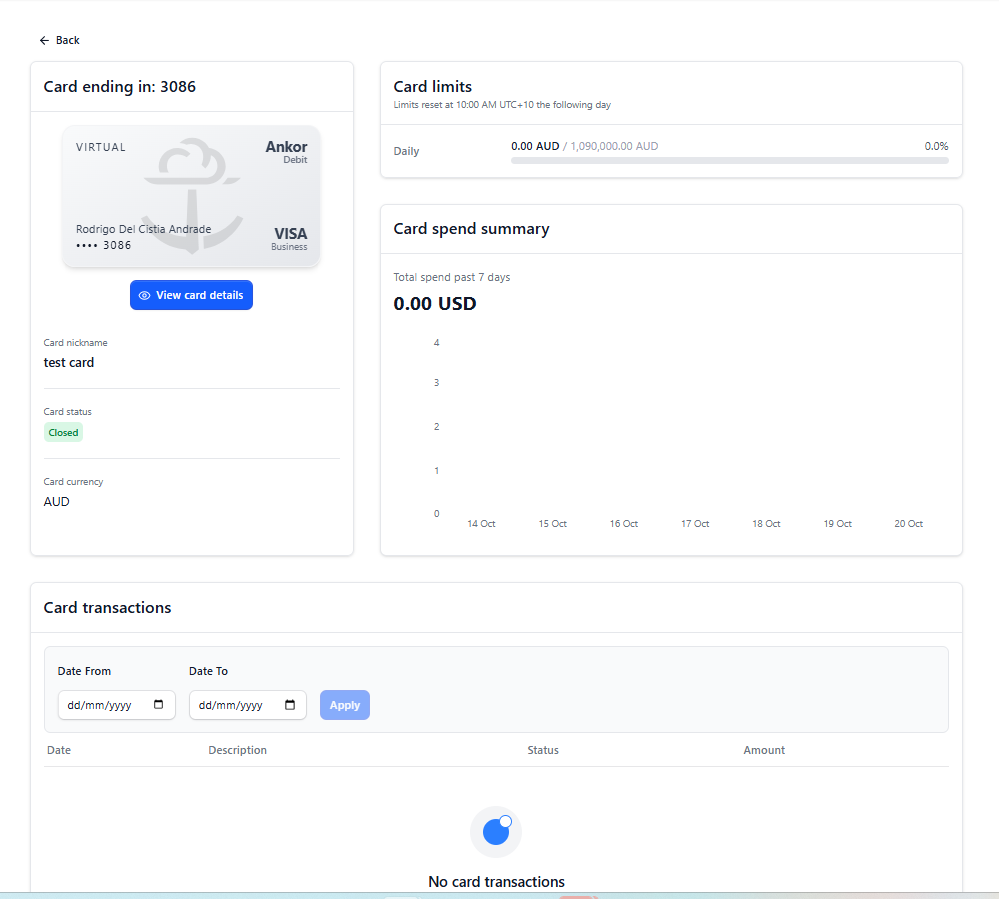
Viewing a Card Summary
- Go to Cards > Cards tab
- Click on the card row
- See:
- Virtual card details
- Card limits
- Spend summary
- Transactions
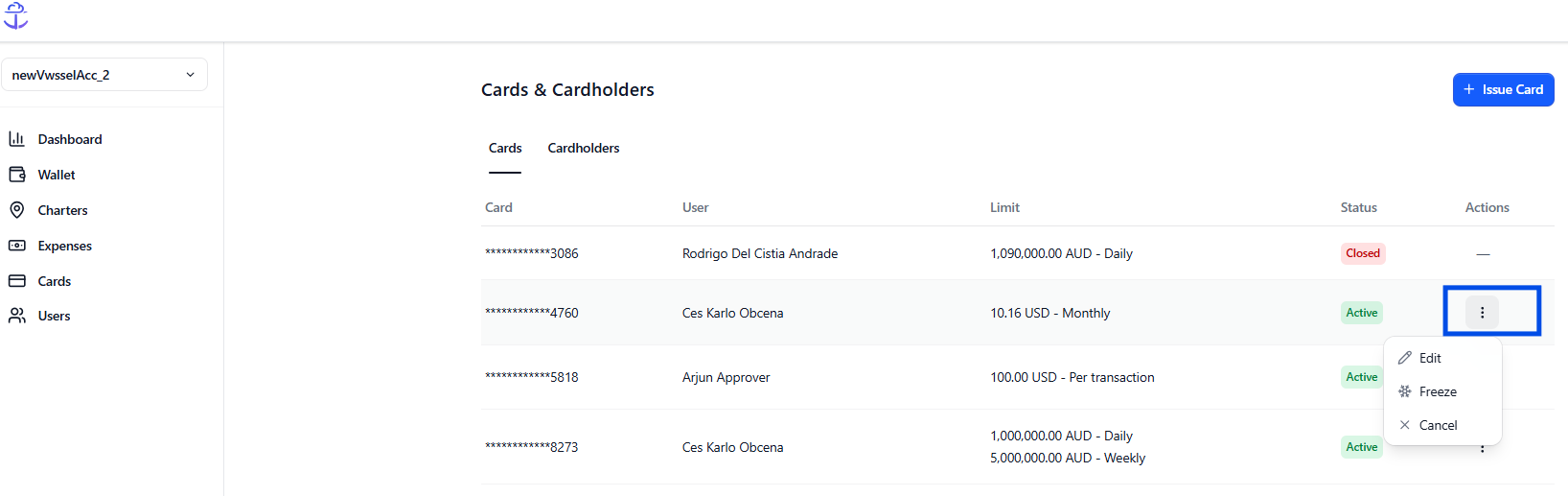
Canceling, Freezing, or Unfreezing a Card
- Go to Cards > Cards tab
- Under Actions, click the three dots icon
- Choose Edit, Freeze, Unfreeze, or Cancel
💡Cardholders will be able to add their card to their Digital Wallet on their phones.
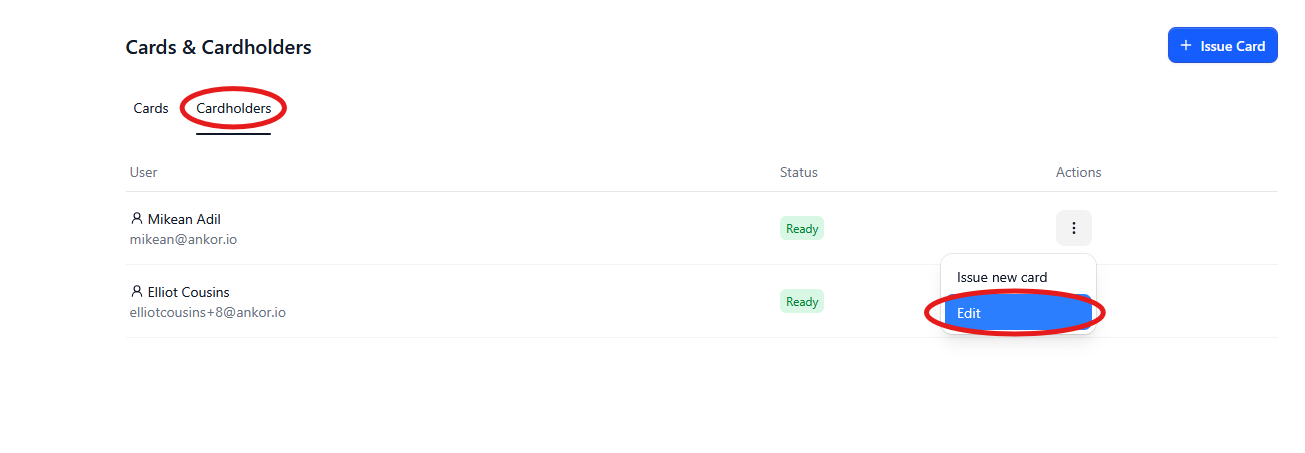
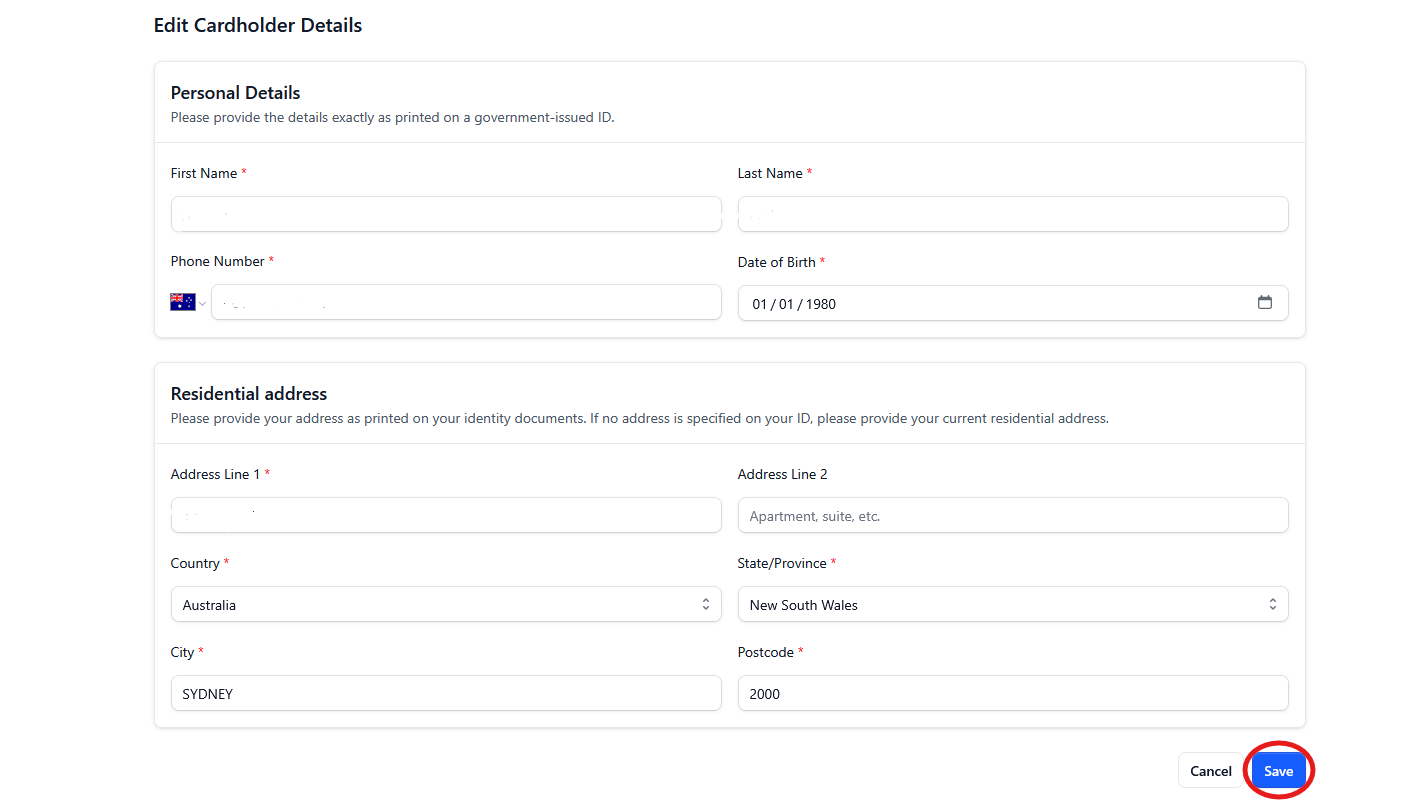
Changing Cardholder's Information
We might need to change the details (address, phone number, birth date...) of a cardholder at some point due to a mistake or these details actually changing. Here's how to do it:
- Go to Cards > Cardholders tab
- Under Actions, click the three dots icon
- Choose Edit
- You will see Personal Details and Residential Address
- Make the necessary changes and click Save. The details will update after a few seconds.
Need Help? Reach out to our team at support@ankor.io