Deposits and Transactions
How Money Enters the Charter Account
Deposits for a charter must always begin with funds being paid into one of the vessel’s global bank accounts. Once the payment is received, the amount will appear in the vessel’s Wallet.
From there, the admin can assign the deposit to the correct charter by navigating to:
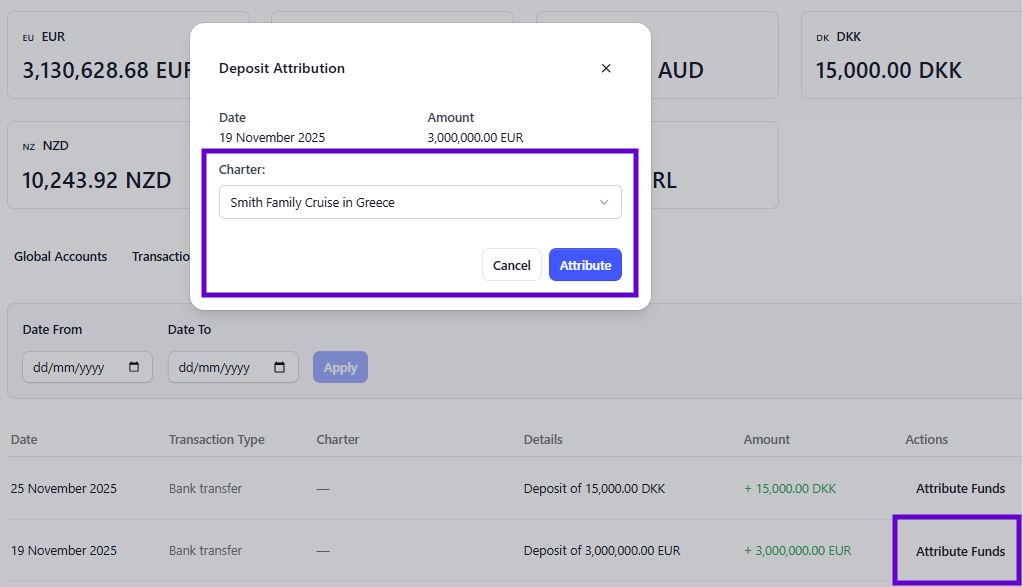
Wallet > Deposits > Attribute Funds, then selecting the relevant charter. This updates the APA balance and ensures visibility for all users who have access.
Important Notes
- Captains and crew cannot upload deposits directly.
- “Send Payment” cannot be used to add APA funds. It is only for sending money out of the wallet, not for recording incoming deposits.
- If a captain collects APA funds while already on another charter, the funds must still be transferred into the vessel’s global bank account first. Once received, the admin can allocate them to the appropriate upcoming charter.
Deposits in the Global Account
In the Deposits tab, you can review all incoming funds and assign each deposit to the correct charter to ensure the related Charter Wallet is properly funded.
How to Attribute a Deposit to a Charter
- Go to Wallet
- Open the Deposits tab
- Click Attribute Funds and select the correct charter
Once assigned, the deposit will appear in that charter’s total balance, and all future related transactions will be recorded under the charter’s Transactions section.
To view the total balance per charter, navigate to Charters, then select the respective charter.
Transactions in the Global Account
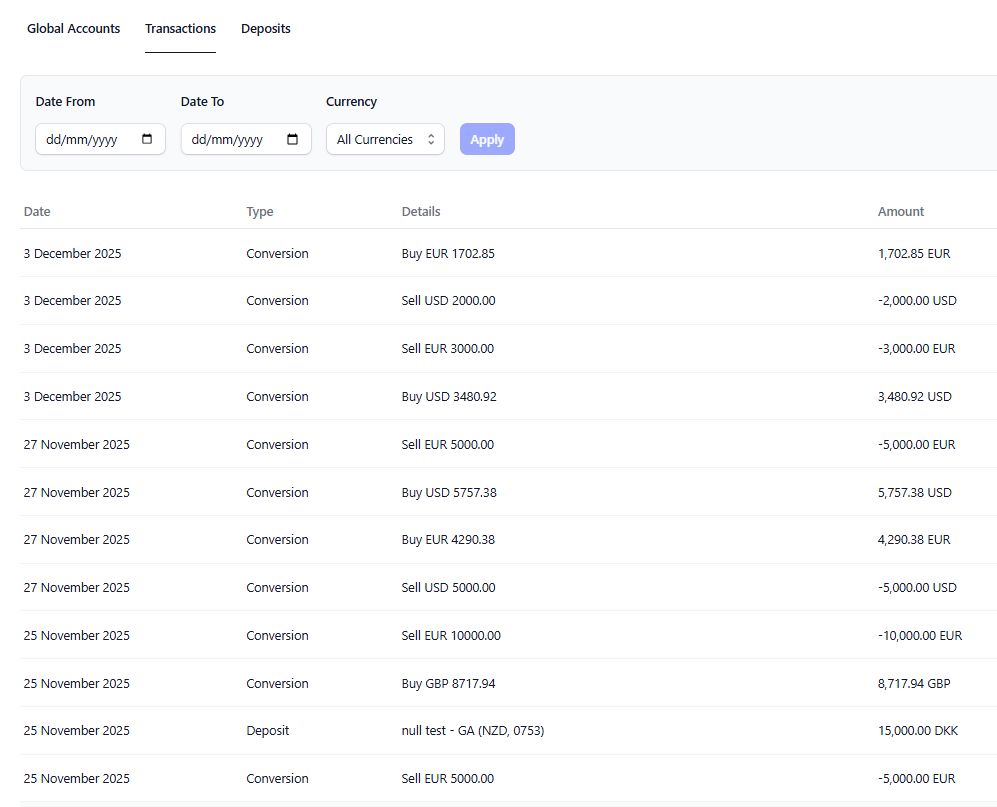
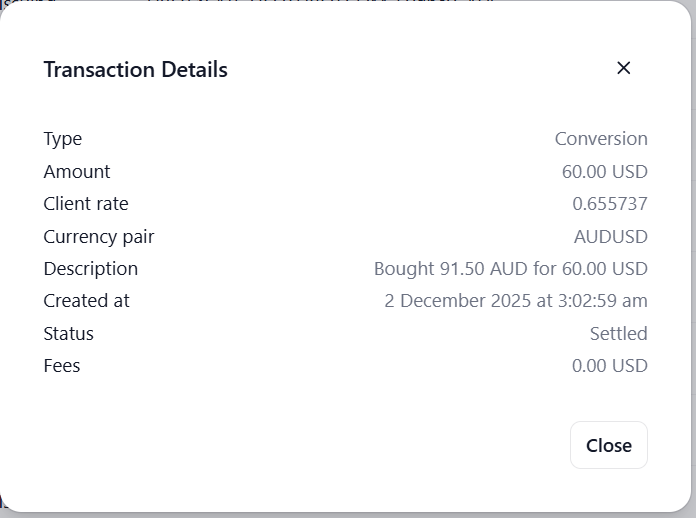
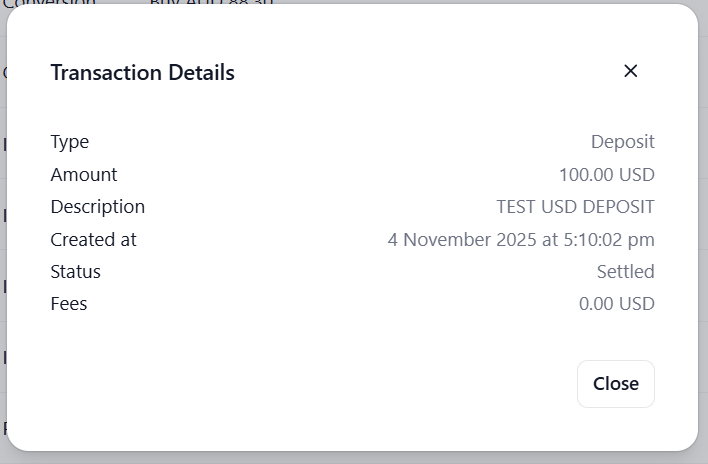
In the Transactions tab, you can review all operations made within the Global Account — including incoming funds, payments, and currency conversions.
All activity is visible here, even if you operate several accounts across different countries or currencies.
Navigate to:
Wallet > Transactions
Exporting Transactions or Expenses
To download all transactions or expenses for a specific charter, you must go to:
Charters > Select Charter > Export. Currently, we have not implemeneted export function on the Digital Wallet.
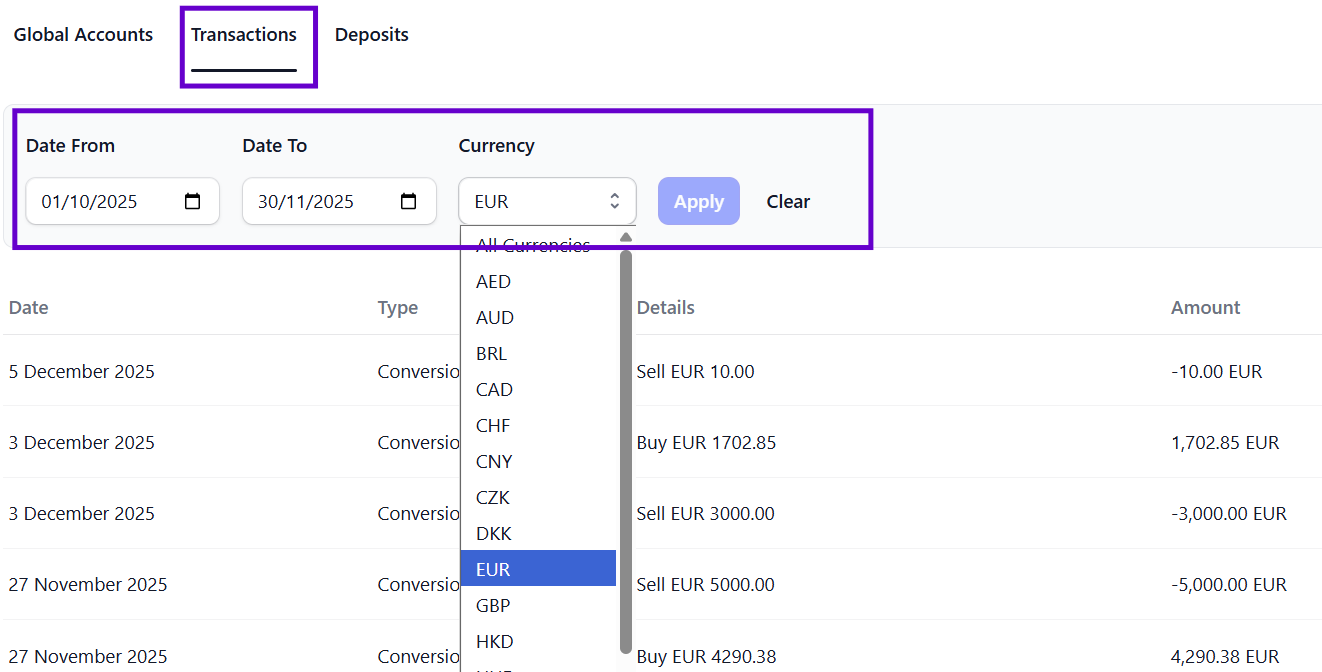
Viewing Digital Wallet Transactions by Currency
You can filter your Wallet transactions by currency and date range.
Simply apply the relevant filters (e.g., Date Period, Currency) to view the corresponding results.
Help Needed? Do not hesitate to reach out to our team at support@ankor.io